This article explains how to set up supported Yealink desk phone models for use with net2phone Canada.
Plug in Your Yealink Phone
Yealink SIP phones include a desk phone and an Ethernet cable.
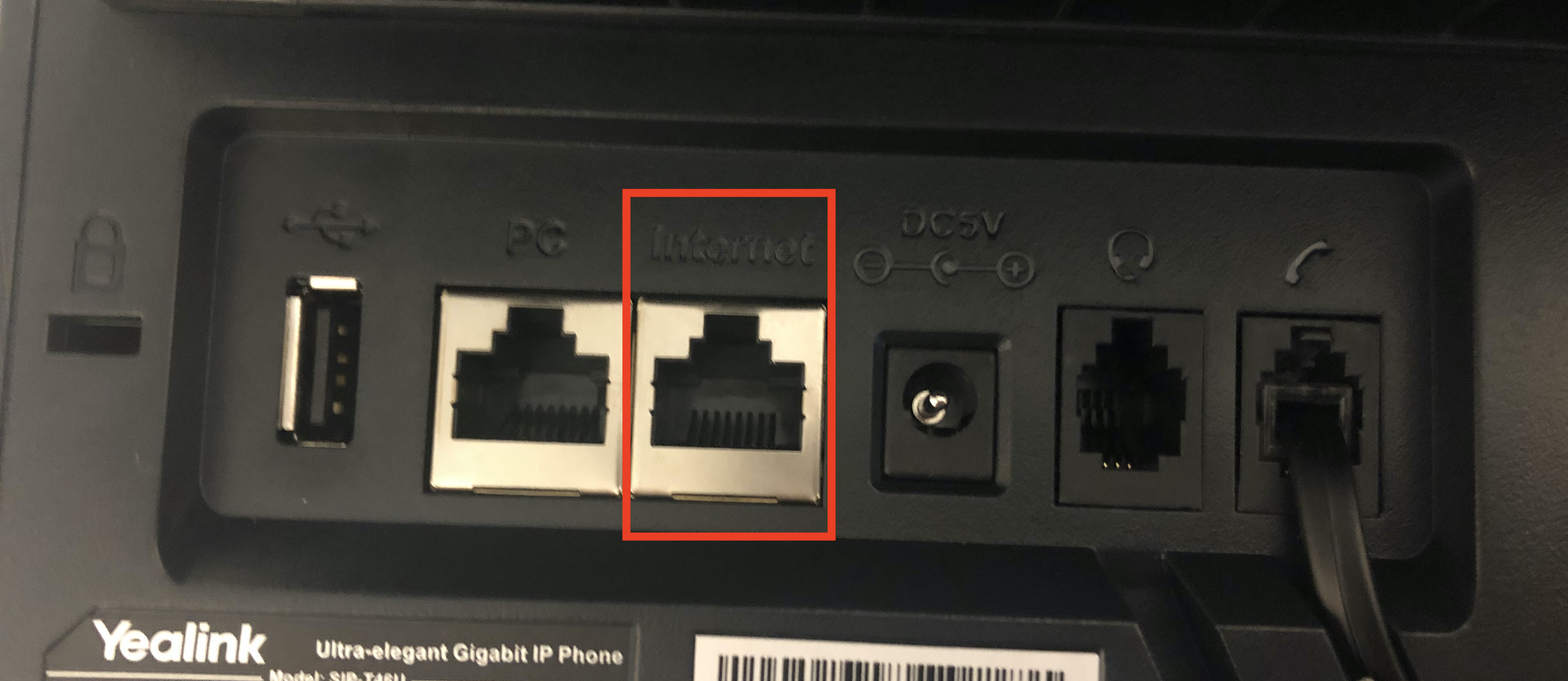
- Plug the Ethernet cable into the LAN port on the back of the phone.
- Plug the other end into a wall network port or network switch.
The phone will power on automatically if Power over Ethernet (PoE) is available.
Power Options (No PoE)
If Power over Ethernet (PoE) is not available, you can use a compatible Yealink AC adapter.
- 1.2A AC Adapter – Compatible with T33G and T43U models.
- 2.0A AC Adapter – Compatible with T46U models.
Connect to WiFi (Optional)
T43U and T46U models support the WF50 WiFi USB dual-band adapter. This USB adapter allows the phone to connect wirelessly to your network.
Connect to Bluetooth (Optional)
The T43U and T46U models support the BT41 Bluetooth USB dongle.
Refer to Yealink’s BT41 user guide for detailed setup instructions.
Add Contacts
Important: Do Not Add Contacts Directly to the Phone
Do not add contacts directly to your Yealink device. The Sonar system syncs with your desk phone, and manually added contacts may be removed if the device is rebooted or reprovisioned.
Instead, learn how to add external contacts in Sonar.
Change Your Ringtone (Optional)
- Navigate to Menu > Settings > Basic Settings > Sound > Ring Tones > Common.
- Select your preferred ringtone using the arrow keys.
- Press Save to apply your changes.